Microphone recording
Choose an input device and check its waveform and level before recording.
Audio Recorder for Windows
Capture exactly what you need from a microphone, Windows system audio, or one supported app. A live waveform and VU meter help you confirm the signal before you record.
Tutorials
Sources
Choose an input device and check its waveform and level before recording.
Capture audio played by Windows without using a microphone.
Choose a supported app, check its live waveform for audio input, then record it without other app audio.
Pro
Choose a supported app, check its live waveform for audio input, then record it without other app audio.
Yes, with Pro. Choose a supported app and check its live signal before recording. Availability depends on your Windows version and the app.

Pro
Free lets you add and configure sources and check their live levels. Starting a multi-source recording requires Pro; Free does not save multi-source recordings. Single-source recording follows the existing Free and Pro rules.
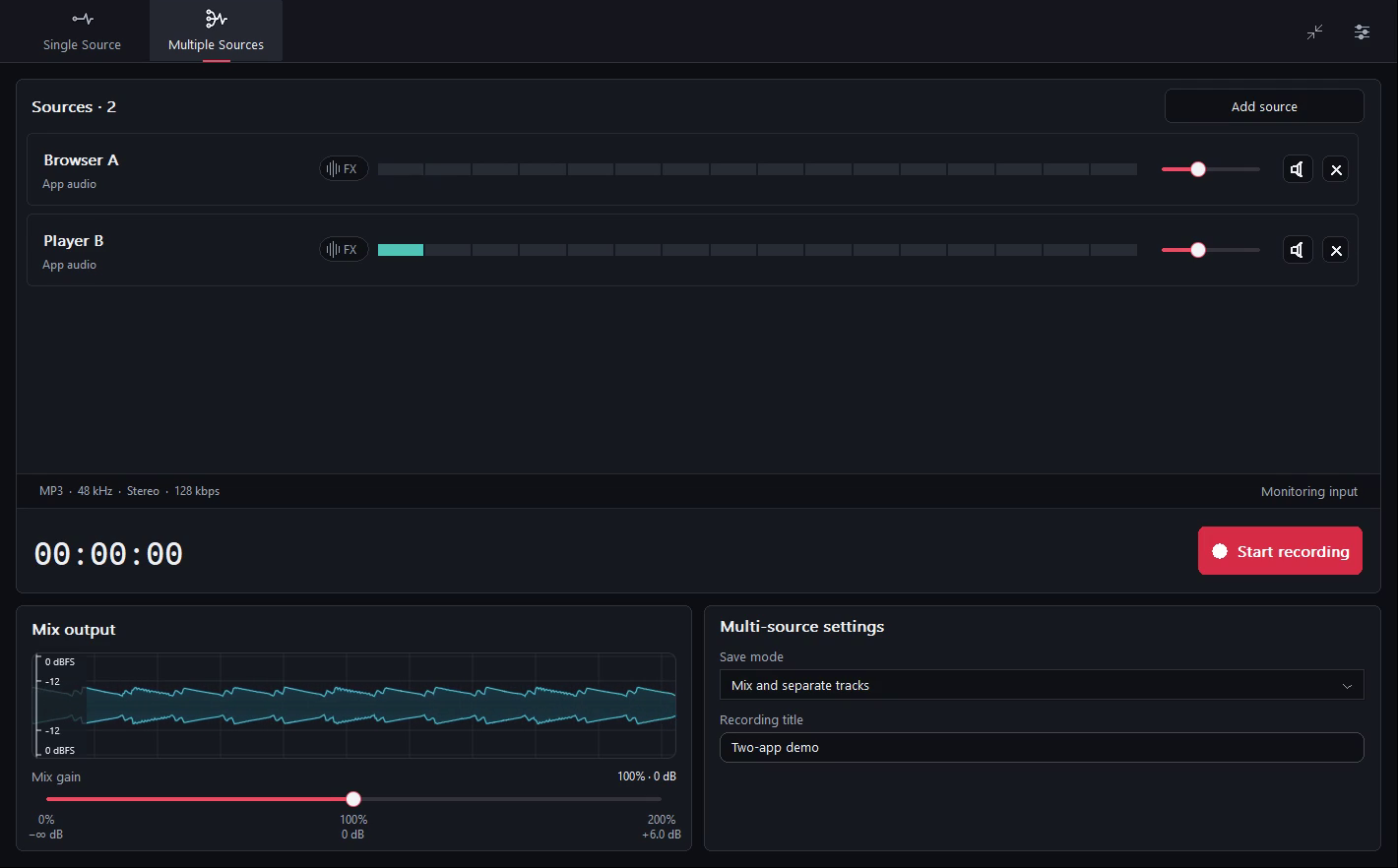
Choose microphone inputs, Windows system audio or compatible apps. System audio may already include the app you selected separately; avoid capturing the same sound twice unless that is intentional.
Each source has its own level meter, gain, mute and real-time noise reduction. Check the meters while the sources are active and lower gain if a source is too loud.
The default save mode writes one mixed file. Select the option to keep separate tracks to save the mix plus a file for each source.
The mixed waveform shows the combined signal. Adjust mix gain or reset it to 0 dB. Compact mode keeps the active mix level and recording controls in view.
The full view now has a dBFS waveform scale and smoother scrolling. Inline noise reduction has larger text and more space. In narrow windows the active row expands, and the settings sidebar scrolls only when it needs more vertical space.
Features
Use sound-level or voice detection to pause after silence and continue when the selected signal returns.

Include a short moment from just before recording resumes, helping prevent clipped first words and abrupt transitions.
Help reduce low-frequency rumble and quieter background noise before it reaches the recording.
Follow the Windows default device or keep a preferred device selected when it disconnects and later returns.
Formats
Save as widely compatible MP3, efficient M4A/AAC, lossless FLAC, or uncompressed WAV, with mono, stereo, and quality controls.
Choose MP3 or M4A/AAC, or unlock FLAC and WAV with Pro. Adjust sample rate, channels and encoding quality for your format.
Audio Recorder+
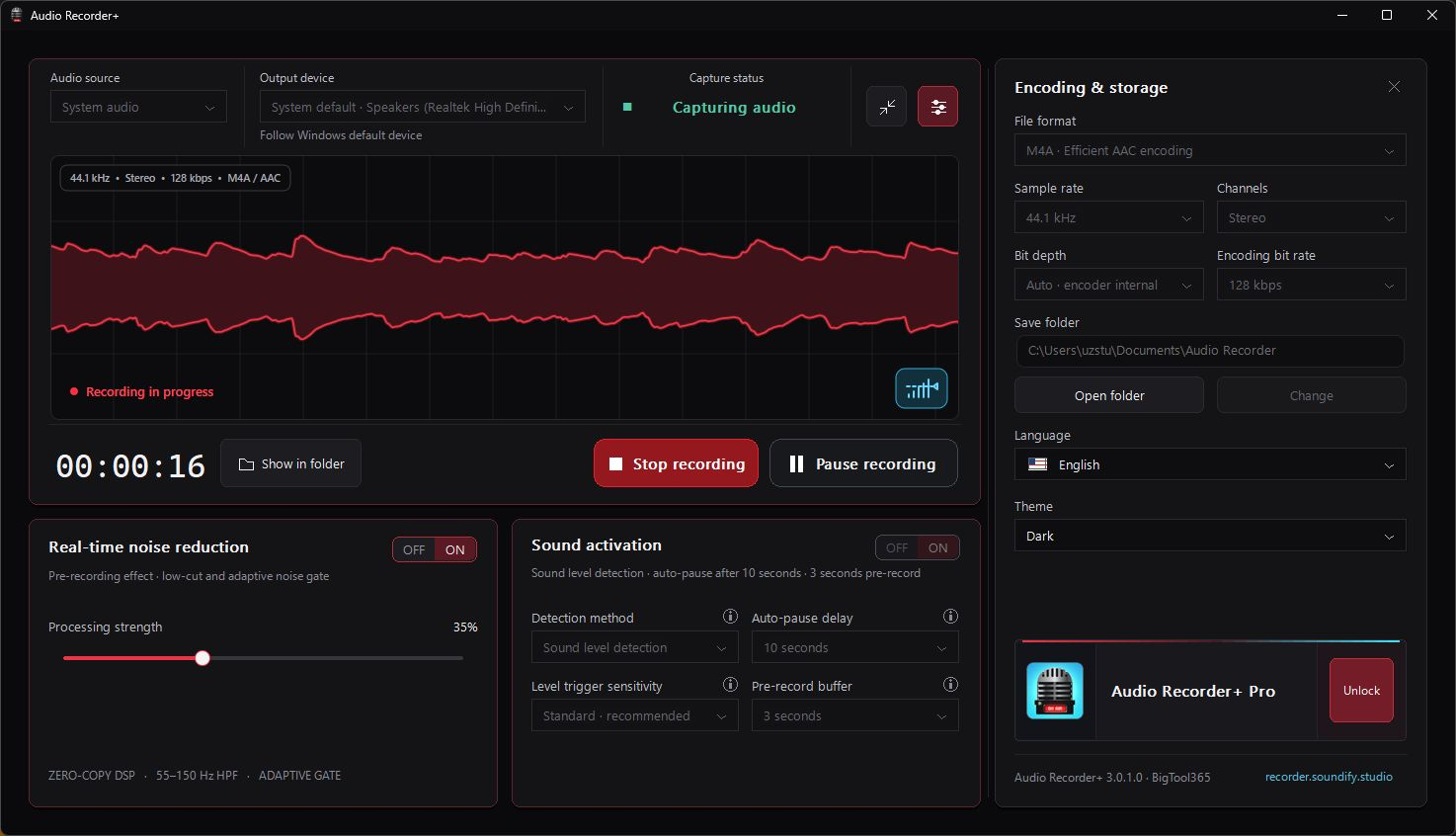
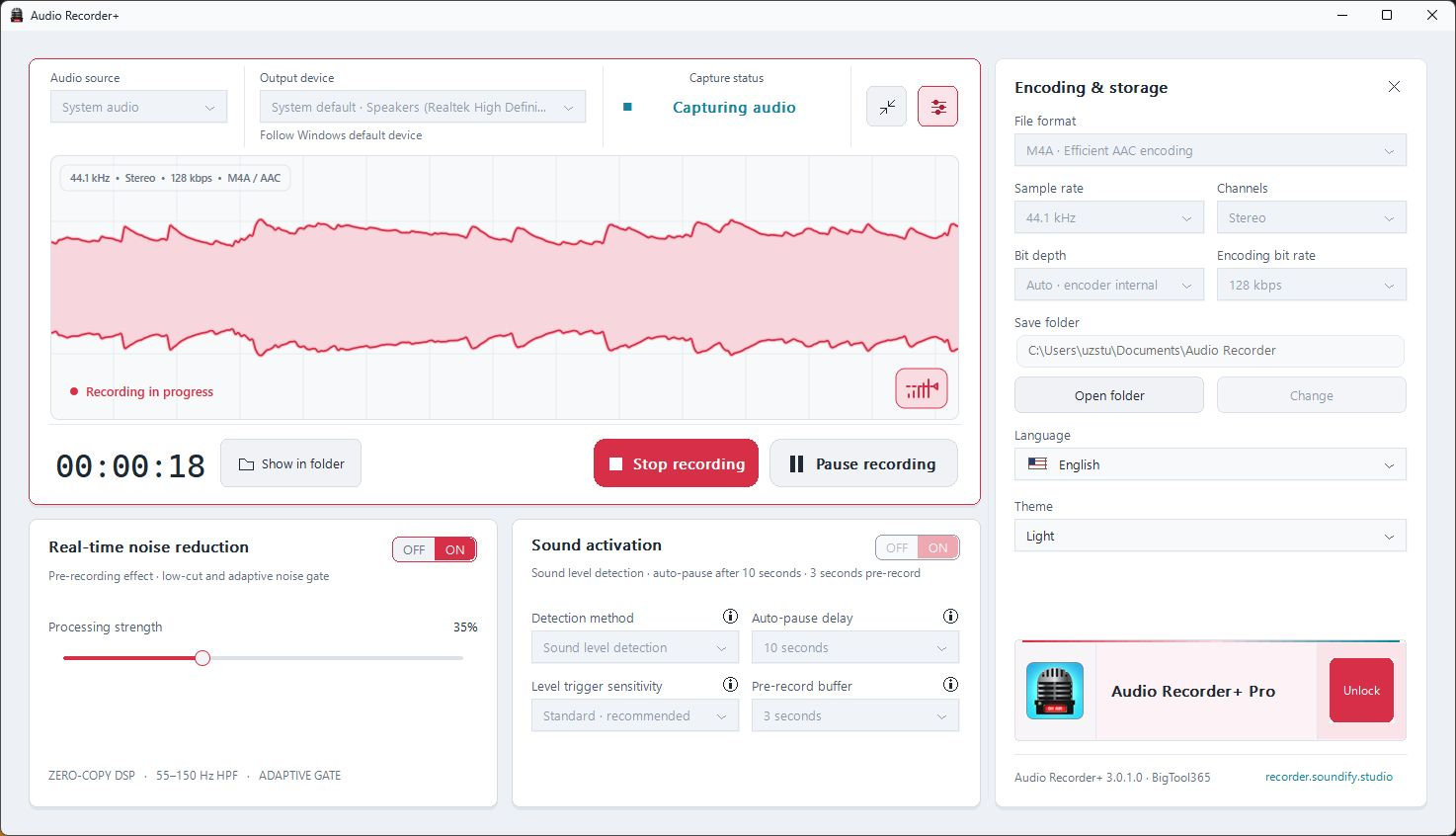
Choose Light, Dark, or follow your Windows theme. Change the look without restarting.
New in 3.0.2: choose a Light or Dark theme, or follow Windows. A new welcome guide helps you get started. Recording controls, settings and Pro purchase screens have been refined, with clearer prompts and improved layouts.
Features
Switch to compact mode for the waveform, level meter, timer, and essential controls in a small window.

Pricing
One-time purchase
Everything in Free, plus:
Pro base price: US$29.99. Local prices and applicable taxes are shown in Microsoft Store.
Privacy
Recording, sound detection, noise reduction and encoding happen on your computer. Your audio is not uploaded.
FAQ
Free lets you add and configure sources and check their live levels. Starting a multi-source recording requires Pro; Free does not save multi-source recordings. Single-source recording follows the existing Free and Pro rules.
Choose microphone inputs, Windows system audio or compatible apps. System audio may already include the app you selected separately; avoid capturing the same sound twice unless that is intentional.
The default save mode writes one mixed file. Select the option to keep separate tracks to save the mix plus a file for each source.
Yes, with Pro. Choose a supported app and check its live signal before recording. Availability depends on your Windows version and the app.
You start and stop the recording. Once started, sound activation can pause during silence and resume when sound or speech returns.
No. Audio processing happens locally, and recordings are saved in the folder you choose.
No. Pro is a one-time purchase. To restore your purchase, sign in to Microsoft Store with the same Microsoft account.
Record from a microphone, system audio, or a selected app
Get the app — Microsoft Store