Audio Recorder+
Record multiple audio sources on Windows
Record a microphone, Windows system sound or compatible apps together. Save a mix or keep separate tracks with Audio Recorder+ Pro.
Free lets you add and configure sources and check their live levels. Starting a multi-source recording requires Pro; Free does not save multi-source recordings. Single-source recording follows the existing Free and Pro rules.
Multiple Sources
- Add source
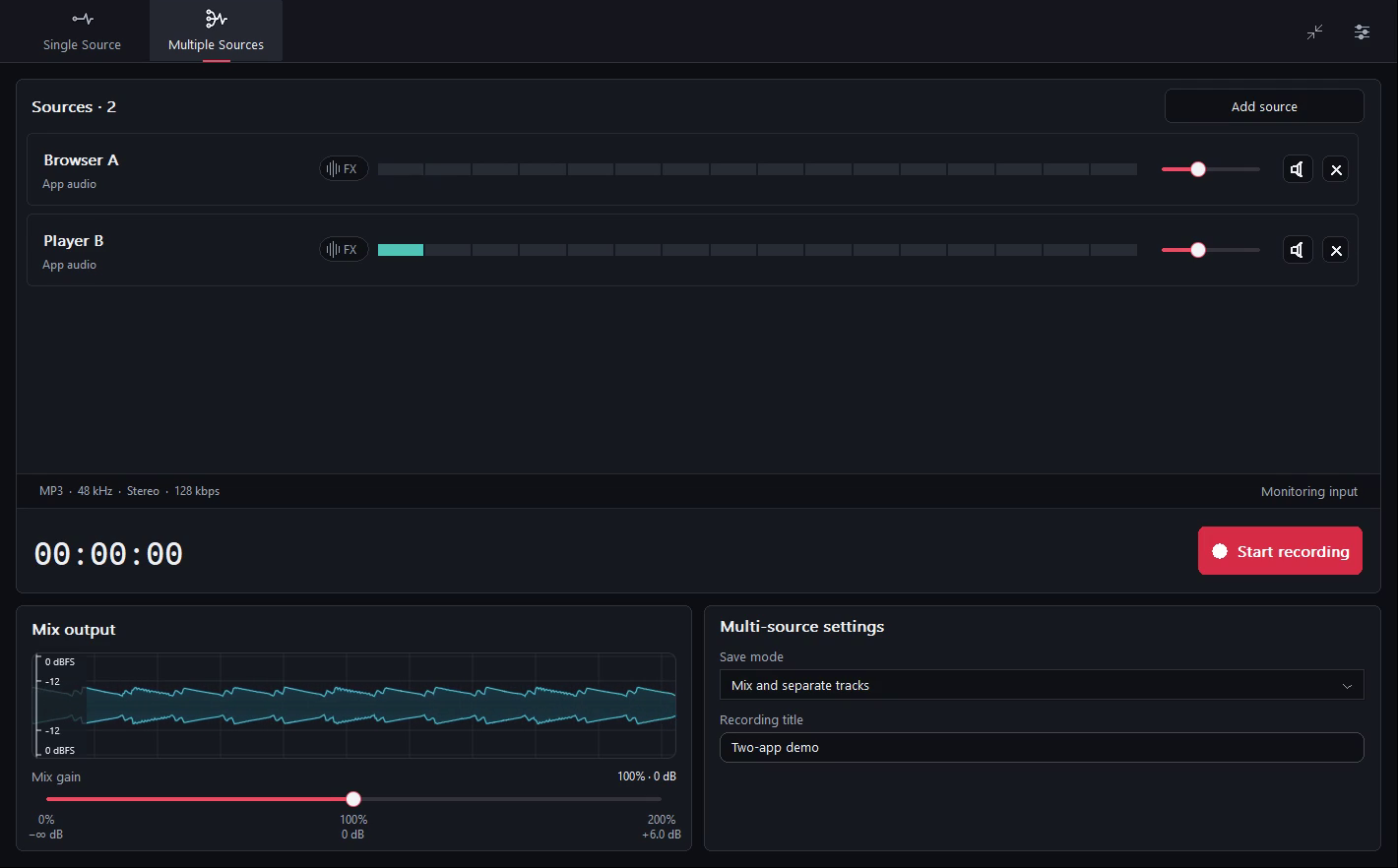
Open the multi-source workspace and add the inputs you want. Play a sound or speak into the microphone, then check each source meter and the mixed waveform.
For a commentary recording, add your microphone and the browser that is playing the clip. Play the clip and speak into the microphone. Check that both meters move, then turn down the browser in the mix so your voice comes through clearly.
Choose microphone inputs, Windows system audio or compatible apps. System audio may already include the app you selected separately; avoid capturing the same sound twice unless that is intentional.
- Mix gain
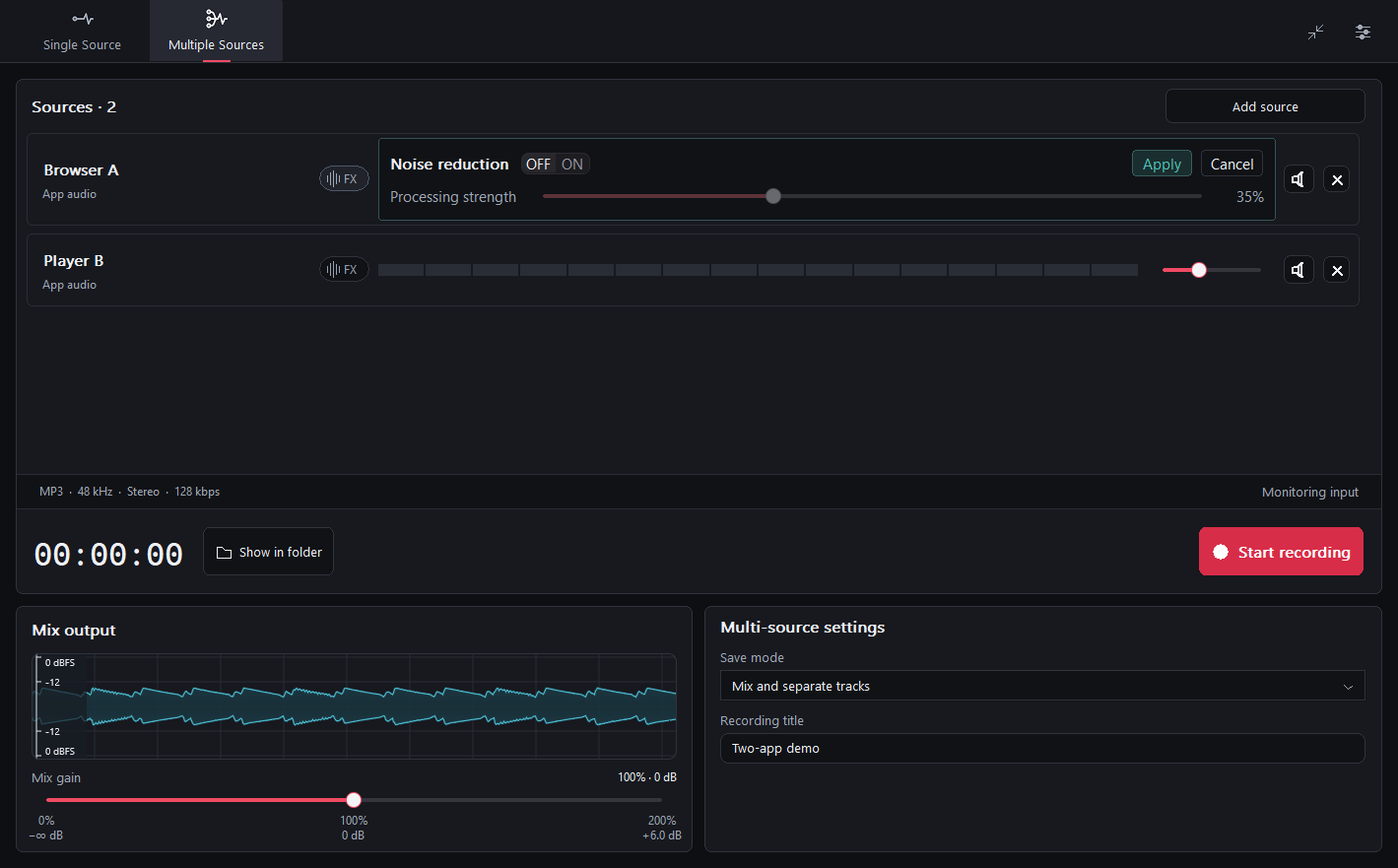
Each source has its own level meter, gain, mute and real-time noise reduction. Check the meters while the sources are active and lower gain if a source is too loud.
- Save mode
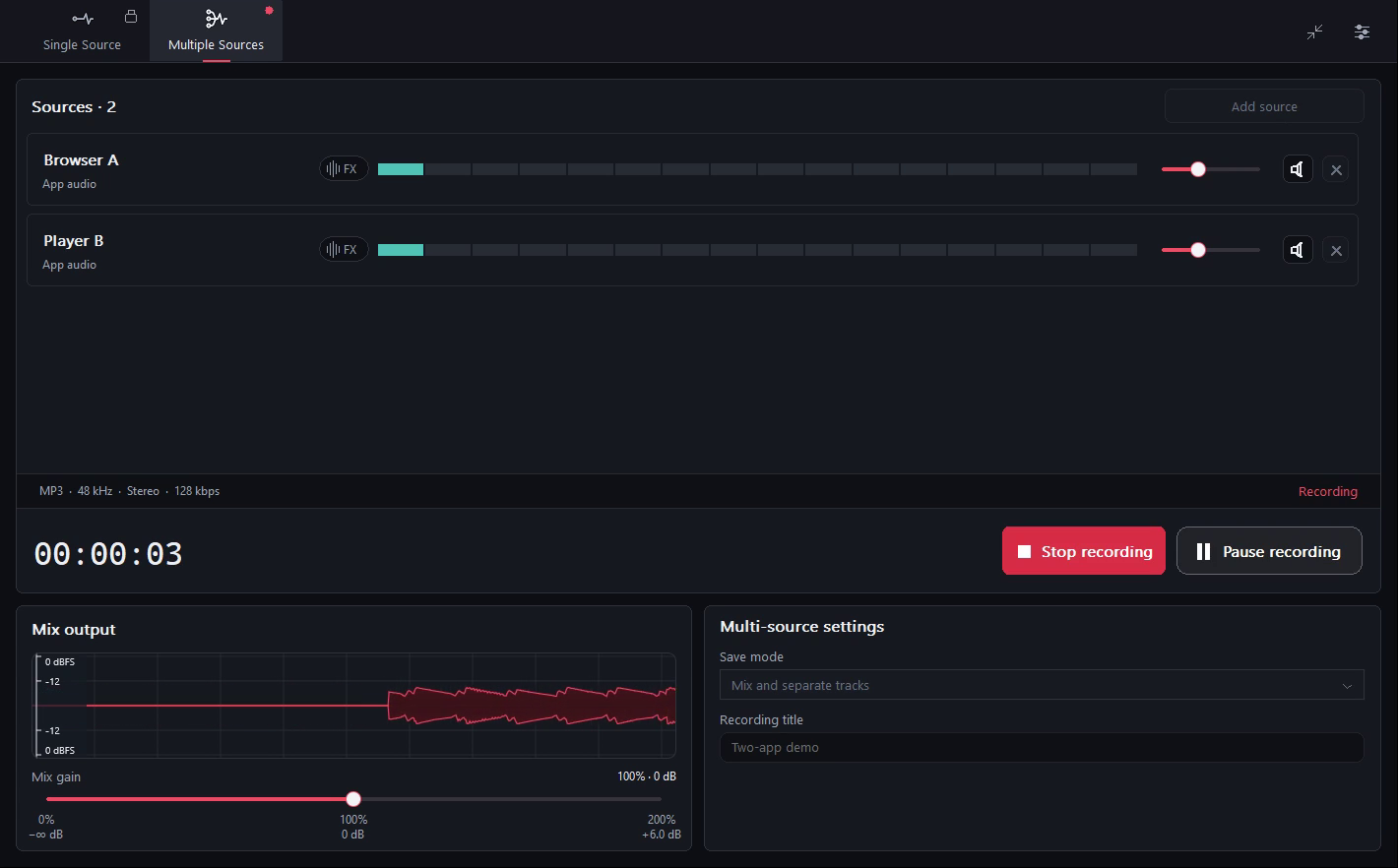
Choose a save mode and start recording with Pro. Stop the recording, open the output folder and play the mix. If you enabled separate tracks, check each saved track too.
The default save mode writes one mixed file. Select the option to keep separate tracks to save the mix plus a file for each source.
Mix only / Mix and separate tracks
FAQ
Can I record multiple sources for free?
Free lets you add and configure sources and check their live levels. Starting a multi-source recording requires Pro; Free does not save multi-source recordings. Single-source recording follows the existing Free and Pro rules.
Which sources can I combine?
Choose microphone inputs, Windows system audio or compatible apps. System audio may already include the app you selected separately; avoid capturing the same sound twice unless that is intentional.
Can I save separate audio tracks?
The default save mode writes one mixed file. Select the option to keep separate tracks to save the mix plus a file for each source.